

|
Faq |
 |








-
Can I use PCS Data on more than one computer with one account?
-
What are the upsides and downsides of backing up multiple computers using a single backup account?
-
How do I setup PCS Data on Multiple Computers using one backup account?
-
Can I backup Microsoft Exchange Server and Microsoft SQL Server?
-
I already have a backup that we use, Why would I want to backup online?
-
What is the purpose of the Retention area, can I disable it?

Please refer to the Pricing page.
The data is encrypted using 128-bit encryption before it is uploaded to our servers over a secure point-to-point SSL connection between server and client. You have a choice of different encryption algorithms, e.g. Twofish, Triple DES, Advanced Encryption Standard (AES) along with choice of different encryption modes, e.g. Electronic Cook Book (ECB) and Cipher Block Chaining (CBC). Each backup user can restrict online access to his files to his pre-defined list of IP addresses
Can I use PCS Data on more than one computer with one account?
Yes, However we do not recommend doing this. Please see question number 4, how to setup multiple computers with one account.
What are the upsides and downsides of backing up multiple computers using a single backup account?
Upsides:
- You require less backup accounts
- You can use one pair of username and password to configure the backup setting of all backup settings
Downsides:
- You must use different backup sets for different computers
- Whenever a new backup set is created under the backup account, you need to go back to all computers using the same backup account to uncheck the “Run scheduled backup on this computer” option for the new backup set (as backup setting is saved on server and new backup set is default to run on all computers, i.e. with the option checked)
- Improper configuration could easily cause problems, which are difficult to debug.
How do I setup PCS Data on Multiple Computers using one backup account?
If you want to backup multiple computers using a single backup account, you need to create different backup sets to backup each individual computer. Also, for each installed copy of PCS Data , you must configure PCS Data so that it only runs scheduled backup for its intended backup sets on its computer. If this is not being setup properly, scheduled backup job of the same backup set from different computers will both be started. This will result in lots of checksum errors and files being deleted on the backup server.
To allow multiple computers to be backed up under a single backup account, you are required to do the following for each computer that has been installed with PCS Data under the same backup account:
i. Logon to one of the computers that has been installed with PCS Data under the same backup account
ii. Open PCS Data and select a backup set that is not intended to run on this computer from the left panel
iii. Uncheck the [Run scheduled backup on this computer] checkbox on the right panel
iv. Repeat the previous step for the rest of all backup sets that are not intended to run on this computer
v. Repeat step ii to step iv for each computer that has been installed with PCS Data under the same backup account
IMPORTANT: If you want to backup an extra computer using the same backup account some time later (this implies that you need to create an additional backup set under this backup account for the new computer), please make sure to repeat the procedure above (unchecking the [Run scheduled backup on this computer] checkbox for the added backup set) for each computer
Can I backup Microsoft Exchange Server and Microsoft SQL Server?
Yes, with the optional database add-on.
What are the system requirements to use PCS Data ?
Operating System :
1. Windows 95 / 98 / ME / NT / 2000 / XP / 2003
2. Linux Kernel 2.2 or above * (e.g. RedHat Linux 6.x or above)
3. Solaris 2.x or above
4. Mac OS X 10.2 or above
5. NetWare 5.1 or above
6. all other operating systems that supports Java2 Runtime Environment 1.3.1 or above
Memory : 128MB (minimum), 256MB (recommended)
Disk Space : 100MB
Network Protocol : TCP/IP (http/https)
What operating systems does PCS Data support?
Windows 95 / 98 / ME / NT / 2000 / XP / 2003
Red Hat Linux 6.0 or later
Novell NetWare 5.1 or later
Sun Solaris 2.5 or later
Apple Mac OS X v10.x
all other platforms supporting Java2 SDK Standard Edition, v1.3.1 or later
What is
in-file delta? In-file delta technology is an advanced data block
matching algorithm which has the intelligence to pick up changes
(delta) of file content between two files when one of the files is
not accessible and use the delta information between two files to
rebuild one file from the other. Using this algorithm, daily backing
up of large file (e.g. a 10GB Outlook.pst file) over low-speed
internet connection is made possible because it requires only the
changes of information (should be marginal) since last backup to be
sent over a low-speed internet connection to complete the backup of
a large file (here we assume that the full backup of the file has
been saved on the backup server already). In-File delta does differential backup rather than
incremental backup. It is designed this way so that a corrupted
delta file would only make one particular version of a backup file
non-recoverable and all other backups created by other delta files
of the same file would still be intact.
How often should I schedule a backup?
You can schedule a backup at any time. We would recommend to backup everyday.
Can I use PCS Data with a firewall?
Yes. PCS Data is firewall friendly. However if you have any antivirus or personal firewall software installed you may have to disable it from scanning PCS Data related data and traffic.
How does PCS Data backup open files?
I already have a backup that we use, Why would I want to backup online?
Some of the more traditional methods such as tape and disk can be a bit cumbersome (and not necessarily 100% reliable - but then again what is?). They also require investment in hardware and software such as Tape Drives, Optical drives (e.g. CD / DVD rewrite drives) and the backup media to go in them (tapes, CDs, DVDs etc.), as well as staff who know how to use them. Another consideration is that organizations often do not store a copy of their backup media off site (despite constant advice to do so) - not much good if your office is affected by fire, flood or other disaster.
Online backup services can be used as an alternative or in addition to traditional methods (belt and braces!) - For example if you have some data that you simply cannot afford to lose you might want to use several backup methods including online backup.
How can I manually start a backup?
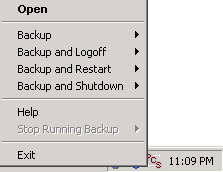
After you have successfully installed PCs Data to your system, an PCS icon will be added to the system tray area (next to your system clock) automatically.
This icon is the entry point to PCS Data . Right clicking the icon will show a menu that provides the following functions:
Menu Item What it does Open Run PCS Data Backup Run the backup set (or all backup sets) chosen in the sub-menu in background Backup and Logoff Run the backup set (or all backup sets) chosen in the sub-menu in background and logoff from Windows Backup and Restart Run the backup set (or all backup sets) chosen in the sub-menu in background and restart Windows Backup and Shutdown Run the backup set (or all backup sets) chosen in the sub-menu in background and shutdown this computer Help Show a help dialog Stop running backup Interrupt the running backup set (or all backup sets) chosen in the sub-menu Exit Close this system tray launcher application
What is incremental backup and how does In-File Delta work?
In an incremental backup, only modified files will be uploaded to the Backup Server.
On the other hand, In-File Delta is applicable to the physical files to be uploaded to the Backup Server, does not matter whether it is a MS SQL database file, MS Exchange transaction log file or any normal file in a FileBackupSet. Specifically, only the changed blocks in comparison the original file on the Backup Server (delta file) will be uploaded.
For each modified file, PCS Data would determine whether the entire file or only delta file should be uploaded. If the entire file is to be uploaded, the old version of the file will be moved to the Retention area. Else if only the delta file is to be uploaded, the previous delta files will be moved to the Retention area and the Data area should contain the original full backup file, checksum file and the latest delta file of this file.
How does Volume Shadow Copy work?
Please refer to http://technet2.microsoft.com/WindowsServer/en/Library/2b0d2457-b7d8-42c3-b6c9-59c145b7765f1033.mspx
Only files that have been deleted (or have been updated by a newer version) are stored in the Retention Area. All other files stay in the Data Area as the current copy and they are not affected by the retention policy. In other words, unmodified files will stay on the PCS Data forever.
What is the purpose of the Retention area, can I disable it?
Deleted and modified files in the current backup are moved to the Retention area in PCS Data and they will stay there as defined by the retention policy of the backup set. You can restore those files that are still in the Retention area. The main purpose of the Retention area is to facilitate retrieval of historical snapshots of a backup set.
Note that the data in the Retention area still counts towards your client’s quota and it stay there as defined by your client’s retention policy.
Unfortunately, the Retention area cannot be disabled, at its minimum, your client can choose to keep deleted files for 1 backup job
Is there an example on how the Retention area works?
Suppose you have 10GB of initial data which grows by 200MB (0.2GB) per day, and on each day 100MB (0.1GB) of the data is modified or deleted from the client machine. Assume he takes the default retention policy setting, i.e. 7 days. Then,
Day 0: Data = 10G; Retention = 0; Total quota used = 10G;
Day 1: Data = 10.2G; Retention = 0.1G; Total quota used = 10.3G;
Day 2: Data = 10.4G; Retention = 0.2G; Total quota used = 10.6G;
...
Day 7: Data = 11.4G; Retention = 0.7G; Total quota used = 12.1G;
Day 8: Data = 11.6G; Retention = 0.7G; Total quota used = 12.3G;
(the 0.1G from Day 1 is removed from the Retention area)
Day 9: Data = 11.8G; Retention = 0.7G; Total quota used = 12.5G;
(the 0.1G from Day 2 is removed from the Retention area)
…and so on
Thus if data is not being modified or deleted frequently, then the size of Retention area should be minimal.
© 2006 Premium Computer Services, LLC , All Rights Reserved.
